
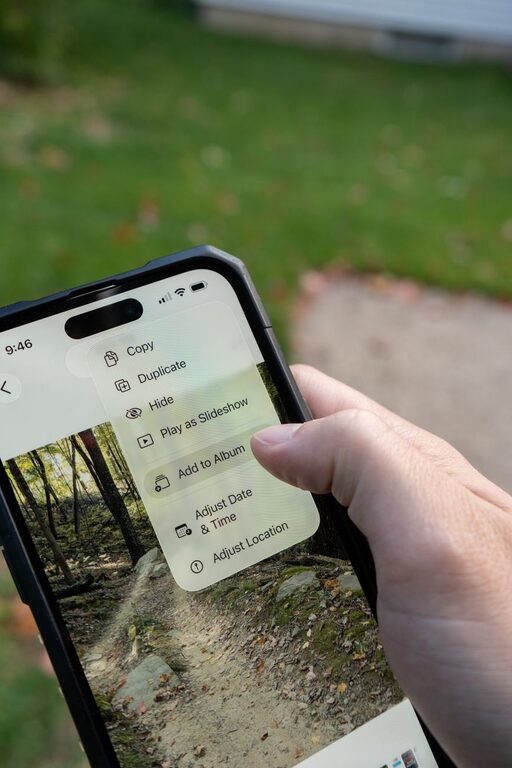
Your phone may hold thousands of photos, from everyday snapshots to travel memories and important documents. When everything is stored in one large camera roll, finding a specific image can become frustrating. The good news is that you do not need a complicated system to organize your digital photos.
A few simple habits can help you create a cleaner library, save storage space, and find pictures quickly. This beginner-friendly guide explains how to organize photos directly on your phone.
Start With a Simple Goal
Before deleting or sorting anything, decide what you want your photo library to do for you. Most people want to:
– Find favorite photos quickly
– Remove blurry or unwanted images
– Keep important memories safe
– Free up phone storage
– Group photos by event, person, or location
You do not have to organize every photo perfectly. A practical system that is easy to maintain is better than an elaborate system you will stop using.
If your library is very large, begin with recent photos or one category, such as screenshots. Completing a small section can make the rest of the task feel more manageable.
Review and Delete Unwanted Photos
The fastest way to improve your photo library is to remove images you no longer need. Set aside a little time to review your camera roll and look for common types of clutter.
Remove Duplicate and Similar Images
Phones often save several versions of the same moment. You may have taken multiple pictures to get one good shot, or downloaded the same image more than once.
Keep the clearest and most useful version, then delete the extras. Some photo apps offer a feature that identifies duplicate or similar images. If your phone has this option, review the suggestions carefully before confirming anything.
Clear Screenshots and Downloads
Screenshots can quickly fill a photo library. They may include:
– Online shopping details
– Temporary messages
– Directions
– Recipes
– Work information
– Social media posts
Delete screenshots that are no longer useful. If you need to keep one, move it into a clearly named album or save the information somewhere more suitable, such as a notes app.
Also review images downloaded from websites or messaging apps. Many are temporary and do not need to stay in your main photo library.
Be Careful With Important Images
Before deleting anything, check whether a photo contains information you may need later. This includes receipts, tickets, identification documents, school information, or records related to household tasks.
For important files, consider saving them in a dedicated folder or document storage app instead of mixing them with personal photos.
Use Albums to Create Helpful Groups
Albums make it easier to find related photos without changing the order of your main camera roll. You can create albums based on the way you naturally search for images.
Useful album ideas include:
– Trips and vacations
– Family events
– Pets
– Home projects
– Recipes
– Hobbies
– Favorite photos
– Important documents
– Seasonal memories
Keep album names short and specific. “2025 Chicago Trip” is more useful than “Travel.” If you create an album for an event, include the year so you can recognize it later.
You do not need to place every photo into an album. Start with groups you use often or photos that are difficult to find in your general library.
Take Advantage of Favorites
Most phone photo apps include a Favorites feature. Use it for images you want to access regularly, such as favorite family photos, pictures for printing, or images you may want to share.
Favorites should be selective. If you mark hundreds of images, the feature becomes less useful. A smaller collection makes it easier to find your best photos quickly.
You can also use Favorites as a temporary review area. For example, mark possible photos for a photo book, then remove the ones you decide not to use.
Add Details When Your Phone Allows It
Many photo apps can search images using dates, locations, objects, or people. Check your photo app’s settings to see which features are available.
If your phone supports captions or descriptions, add them to photos that may be difficult to identify later. A short note such as “Grandma’s garden, spring 2024” can be more helpful than relying on memory.
For older photos, you may want to add details about:
– Who appears in the image
– Where the photo was taken
– The event or occasion
– The approximate date
– Why the photo is important
You do not need to add information to every image. Focus on special photos and pictures that you may share with others in the future.
Organize Photos From Messages and Social Apps
Images received through text messages, email, and social media can become mixed with your personal photos. Review these images regularly and decide whether they belong in your main library.
Keep images that have lasting value, such as family pictures or useful reference images. Delete temporary memes, forwarded pictures, and repeated files.
If your messaging app automatically saves every received image, check its settings. You may be able to stop automatic saving or choose which images to download. This can reduce clutter over time.
Back Up Your Photo Library
Organization helps you find photos, but a backup helps protect them. A backup is an additional copy stored somewhere other than your phone.
Many phones can automatically back up photos to a cloud photo service. You can also transfer photos to a computer or external storage device. Whichever method you choose, check that the backup is working before deleting photos from your phone.
Keep these tips in mind:
– Use a trusted backup service or storage device
– Confirm that older photos are included
– Check the backup status regularly
– Avoid deleting a photo until you know another copy exists
– Keep important photos in more than one location when possible
A backup can take time if you have a large library. Connect your phone to Wi-Fi and power, then allow the process to finish.
Create a Monthly Maintenance Routine
Photo organization is easier when it becomes a small, regular task. Once a month, spend 10 to 15 minutes reviewing new images.
During this routine, you can:
- Delete blurry pictures and duplicates.
- Remove temporary screenshots.
- Add important photos to albums.
- Mark a few favorites.
- Check that your backup is current.
- Review available storage space.
You can also do a quick cleanup after a major event, such as a vacation or celebration. Sort the photos while the details are still fresh in your mind.
Avoid Common Organization Mistakes
A few habits can make photo management harder. Try to avoid creating too many albums, because a long list of nearly empty folders can be difficult to use.
Do not keep several copies of the same photo in different apps unless you need them. Sharing an image through a message or social app may create another saved copy, so check your settings and storage regularly.
It is also best not to delete large numbers of photos in a hurry. Review batches carefully, especially if your phone offers a recovery folder with a limited time period. When in doubt, keep the photo until you can make a more informed decision.
Keep the System Simple
The best photo organization system is one you can maintain. You might use only three habits:
– Delete unwanted images once a week
– Add meaningful photos to albums
– Back up your library automatically
That may be enough to keep your camera roll under control. As your collection grows, you can add captions, create yearly albums, or move older photos to long-term storage.
Start small, use tools your phone already provides, and focus on making your most important photos easy to find. With a few regular habits, your digital photo library can become a useful collection of memories instead of an endless stream of images.