
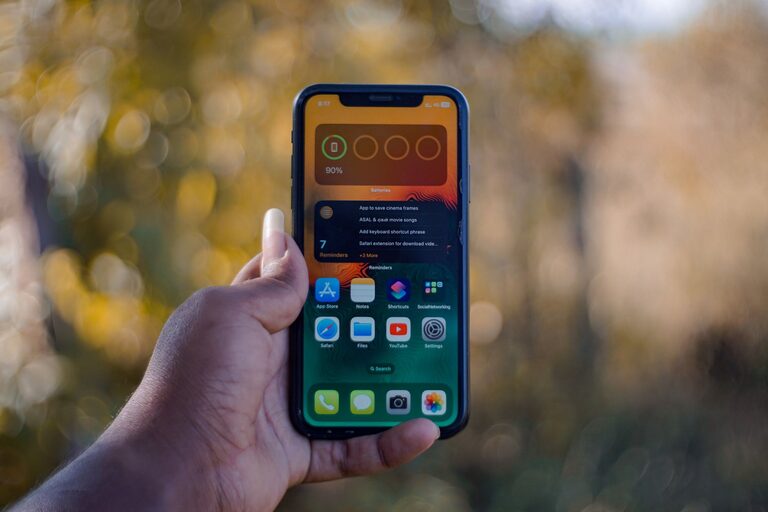
A few simple smartphone adjustments can make reading more comfortable and help your battery last longer. You do not need special apps or accessories to get started. Most phones include built-in tools for changing text size, reducing distractions, managing screen brightness, and limiting power use.
The names and locations of settings may vary between Android phones and iPhones, but the basic options are similar. Work through the steps below and keep the changes that fit your daily routine.
Start with a Clean, Updated Phone
Before changing display and battery settings, take a few minutes to prepare your phone.
Install system updates
System updates can improve performance, fix bugs, and sometimes improve power management. Open your phone’s main settings and look for a section called Software Update, System Update, or something similar.
Connect to Wi-Fi and charge the phone before installing a large update. It is also a good idea to update frequently used apps through the App Store or Google Play.
Remove unused apps
Apps that you no longer use can take up storage and may run background tasks. Review your app list and uninstall anything you do not need. If you are unsure about an app, check when you last opened it before deciding.
You can also remove unused widgets from the home screen. Widgets that frequently refresh information, such as news or weather, may use additional power.
Make Text Easier to Read
Changing text settings is one of the quickest ways to improve reading comfort.
Increase text size
Open the display or accessibility settings and look for Text Size, Font Size, or Display Size. Increase the size one step at a time until messages, menus, and web pages feel comfortable.
Some phones offer a bold text option. This can make letters easier to distinguish without making everything much larger. Try both options and compare them in your email, browser, and messaging apps.
Keep in mind that very large text may cause some apps to show fewer words on the screen. A medium increase is often a good starting point.
Use display zoom carefully
Display zoom enlarges more than text. It can also increase buttons, icons, and other controls. This may be helpful if you often tap the wrong item or find small controls difficult to use.
On some phones, display zoom is separate from font size. Adjust each setting independently so that the screen does not become unnecessarily crowded.
Improve contrast
Look for settings such as High Contrast Text, Contrast, or Increase Contrast. These options can make text and controls stand out more clearly from the background.
A dark background with light text may be useful in low-light surroundings, while a light background may be easier to read in bright conditions. Try both modes during the day and evening.
Turn on a reading-friendly color mode
Many smartphones include a setting called Night Light, Night Shift, Eye Comfort, or Blue Light Filter. These modes adjust the screen’s color temperature, often making it warmer in the evening.
You can usually schedule the feature to turn on automatically at sunset or at a time you choose. The setting does not replace good screen habits, but it can make the display feel less harsh in darker rooms.
Adjust Brightness and Screen Behavior
The display is one of the largest sources of battery use, so small changes here can have a noticeable effect.
Use automatic brightness
Automatic or adaptive brightness changes the screen level based on the surrounding light. It helps prevent the display from staying brighter than necessary.
Turn on this feature, then check it throughout the day. If the screen still seems too bright, lower the brightness manually. A slightly dimmer screen can be easier to read in a quiet indoor setting.
Avoid setting the brightness to maximum unless you truly need it outdoors. High brightness uses more power and may make the phone feel warm.
Shorten the screen timeout
Screen timeout controls how long the display stays on after you stop using the phone. Open the display settings and choose a shorter time, such as 30 seconds or one minute.
If you often read longer articles, a very short timeout may become inconvenient. Choose the shortest setting that does not interrupt your reading.
Choose a simple wallpaper
Animated wallpapers and constantly changing backgrounds may use extra power. A simple still image is usually a better choice for battery life and can make app icons easier to see.
You can also reduce home-screen clutter by grouping similar apps into folders. A cleaner layout makes it easier to find reading apps, browsers, and saved documents.
Reduce Unnecessary Interruptions
Notifications can interrupt reading and wake the screen repeatedly. They can also encourage you to open apps more often than necessary.
Review notification permissions
Open the notifications section in settings and review which apps are allowed to send alerts. Turn off notifications for apps that are not important.
For useful apps, consider keeping only the notification types you need. For example, you may want direct messages but not promotional alerts or frequent reminders.
Use a focus or do not disturb mode
Most phones include Focus, Do Not Disturb, or a similar feature. Create a reading mode that silences nonessential alerts while allowing calls or messages from selected people.
Schedule the mode for regular reading times, or turn it on manually when you want to concentrate. This reduces distractions and prevents the screen from lighting up for every alert.
Manage Battery Use
Battery settings can show which apps and features use the most power.
Check battery usage
Open the battery section in settings and review the usage list. If an app uses a large amount of power even when you rarely open it, check its background activity settings.
You may be able to restrict background use, reduce location access, or turn off automatic updates for that app. Avoid restricting apps that you rely on for essential alerts unless you understand how the change will affect them.
Turn off features you are not using
Wi-Fi, Bluetooth, location services, and mobile data can use additional power when active. You do not need to turn everything off all the time, but disabling unused features can help during a long day.
For example, turn off Bluetooth when no accessories are connected. If you are in an area with weak cellular service, using airplane mode temporarily may also reduce battery drain.
Use battery saver mode
Battery saver or low power mode limits some background tasks, visual effects, and automatic updates. Turn it on when the battery is running low or when you expect to be away from a charger.
Some phones allow you to set battery saver mode to activate automatically at a chosen battery level. This is useful if you often forget to turn it on manually.
Choose Reading Apps and Settings
The app you use can affect both comfort and battery life.
Use an app with adjustable text size, line spacing, margins, and background color. For long articles, reader mode can remove ads, menus, and other page elements so that the text is easier to follow.
Download books, documents, or articles when you have Wi-Fi if you plan to read without a reliable connection. Offline reading reduces the need to load images and web content repeatedly.
Keep your reading app updated, but review its settings after major updates. New features may change text size, page color, notifications, or automatic syncing.
Test Your Setup
After making these changes, use your phone for a normal reading session. Check whether:
– Text is large enough without making pages difficult to navigate
– Brightness is comfortable indoors and outdoors
– The screen stays on long enough for your reading style
– Notifications remain quiet when you want to focus
– Battery use improves during a typical day
Make one or two changes at a time instead of changing everything at once. This makes it easier to identify which settings help most.
A comfortable reading setup does not need to be complicated. With a clearer display, fewer interruptions, sensible brightness, and careful battery controls, your smartphone can be easier to use and stay ready for longer.